-Jul-04-2023-10-20-41-2403-AM.png?width=200&height=50&name=Help%20Centre%20Logo%20(800%20%C3%97%20200px)-Jul-04-2023-10-20-41-2403-AM.png)
Web sign-in
The URL to access CYGNVS will depend on your Company’s Account location:
|
Location |
URL |
|
USA |
|
|
UK |
|
|
EU |
|
|
CA |
|
|
AUS |
|
|
IN |
Click the relevant link to access the the Sign-in page. Enter your username (registered corporate email or phone number).
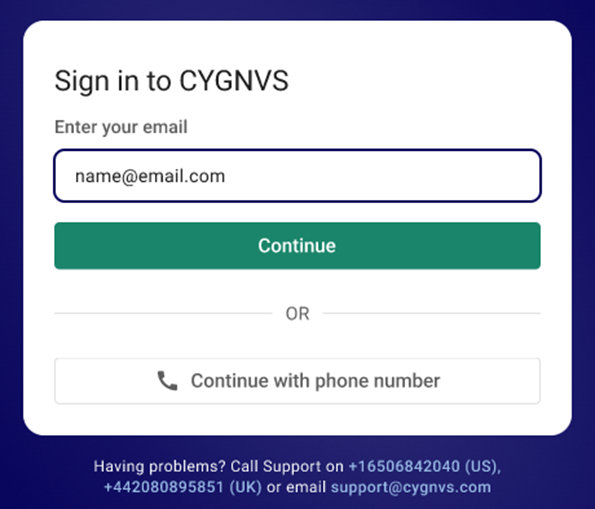
Choose one of the following Sign-in methods:
Sign-in with QR code:
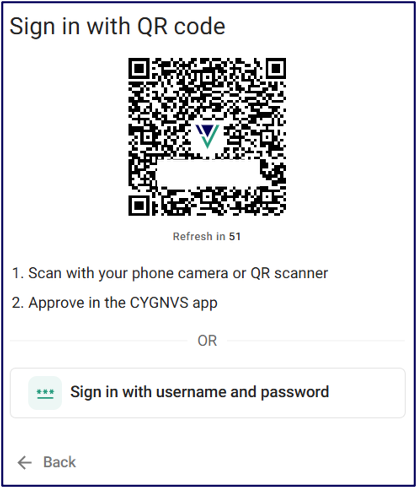
If you've SSO configured, then you'll see QR code only during Isolate mode since sign-in with SSO is disabled during that time.
-
Enter your username (registered email address or phone number).
-
Open camera or any QR Scanner app on your mobile device to scan the QR code displayed on the computer screen.
-
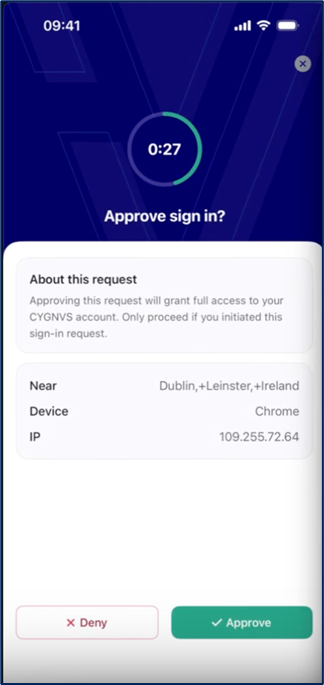
Unlock the CYGNVS app either by using biometric login (FaceID or fingerprint) or enter six-digit PIN and tap Approve on CYGNVS mobile app.
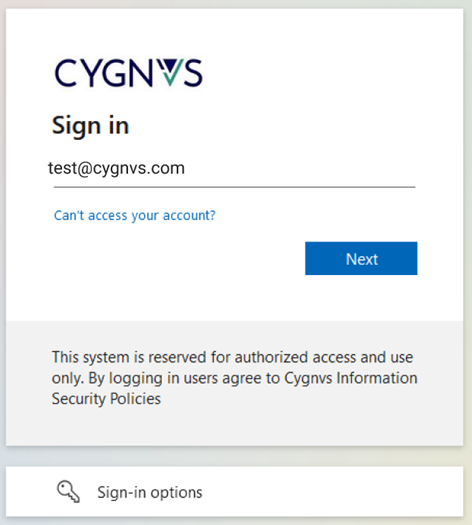
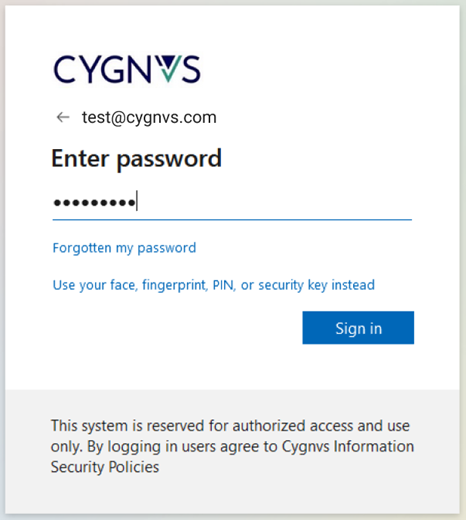
Single-Sign-on (Enterprise only):
If your company has configured SSO, select this option.
-
Enter your corporate email.
-
Enter your password.
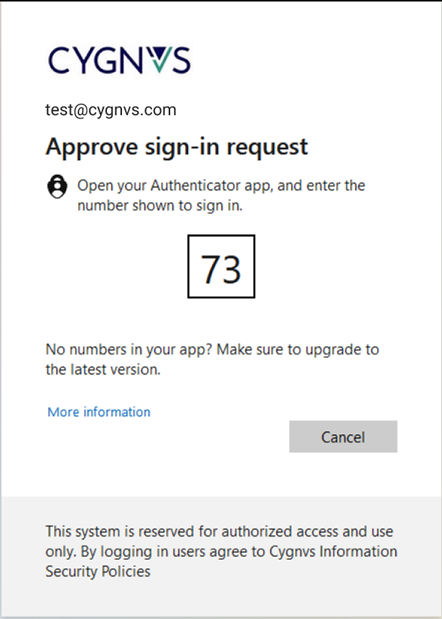
-
Approve the sign-in request.
Username & Password:
-
Enter your username (registered email address or phone number).
-
Select Sign in with username and password.
-
Username will be auto-filled. Enter your password.
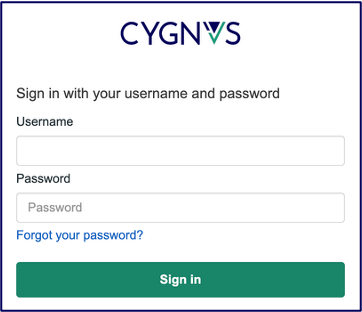
-
Click Sign in to proceed to MFA verification.
-
You can either choose Authenticator app or SMS to authenticate your sign in.
-
Authenticator App:
-
Open the Authenticator app on your mobile phone.
-
Enter the 6-digit code from the Authenticator app associated to your CYGNVS account.
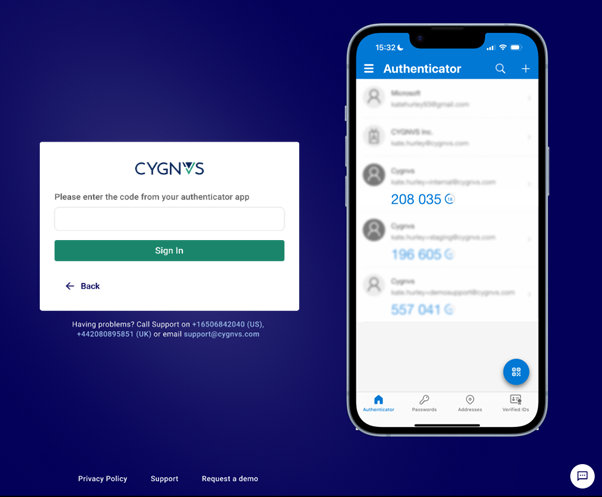
-
Click Sign in.
-
-
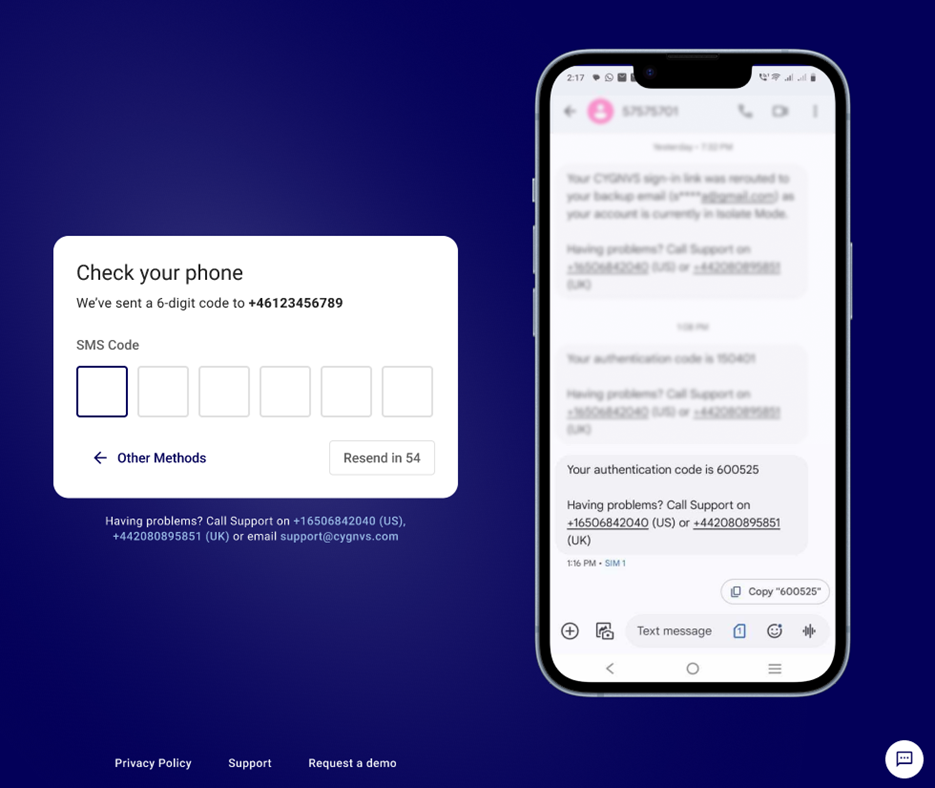
SMS Verification:
-
Selecting SMS option will send a 6-digit code to you via SMS.
-
Enter the code to sign in.
-
-
Once signed-in, ensure to add your backup email or phone number from Your Profile > Security. It is important to add this to your profile so that you'll be able to connect to CYGNVS during Isolate mode. See How to add backup credentials for details.
Mobile sign-in
Username & Password:
-
Open the CYGNVS Mobile app on your phone.
-
Select Sign in with your email to sign in with username and password.

-
Select the region and tap Sign in.

-
Enter your email and tap Continue.

-
If you wish to sign in with your phone number, tap Continue with phone number. Enter your phone number with the correct country code. Enter the SMS code to verify.
-
Enter your password and tap Sign in.

-
Enter the six-digit code from the authenticator app on your mobile device, to sign in to CYGNVS.
If you’ve created PIN or enabled biometric, those will authenticate you into the CYGNVS mobile app.
Sign-in with QR code
To sign in to CYGNVS mobile app using a QR code, ensure you are signed in to CYGNVS on the web.
Once signed in,
-
Click the highlighted Get the app option on the right-hand side of the screen.

-
In the CYGNVS mobile app, click Scan QR code.

-
Use the in-app scanner to scan the QR code displayed on the screen.

-
On the CYGNVS web platform, Approve the sign-in request to complete your mobile login.

-
In the mobile app, tap Continue to proceed.
-
Create and confirm your PIN for a seamless sign-in experience in the app.
-
(Optional) Enable Biometrics for faster, secure sign-ins.
You will be successfully signed in and redirected to the CYGNVS Home Screen.