-Jul-04-2023-10-20-41-2403-AM.png?width=200&height=50&name=Help%20Centre%20Logo%20(800%20%C3%97%20200px)-Jul-04-2023-10-20-41-2403-AM.png)
Introduction:
Why TOTP is Important
Time-based One-Time Password (TOTP) is a highly secure method to protect your account. It adds an extra layer of security by generating a unique code every 30 seconds. This ensures that even if your password is compromised, your account remains safe. Let's walk through the simple steps to set up your CYGNVS account with an authenticator app like Microsoft Authenticator, Google Authenticator, or others.
Step-by-Step Guide:
-
Download the Authenticator App
Download and install an authenticator app from your device's app store.
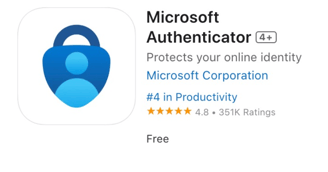
- For iOS: Search for "Microsoft Authenticator" in the Apple App Store.
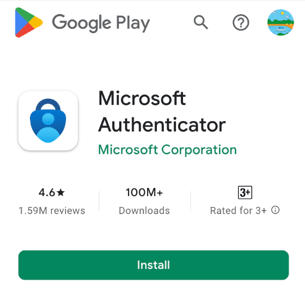
- For Android: Search for "Microsoft Authenticator" in the Google Play Store.
- (Google Authenticator or other apps can also be used similarly.)
-
Add a New Account
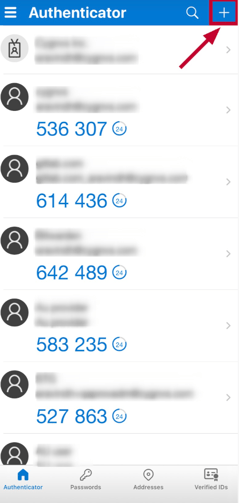
- Open the authenticator app on your phone.
- Tap on the "+" icon to add a new account.
-
Select Account Type
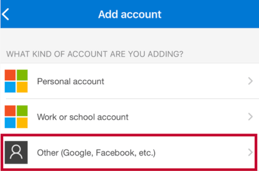
- Choose the option for "Other account (Google, Facebook, etc.)" from the list.
-
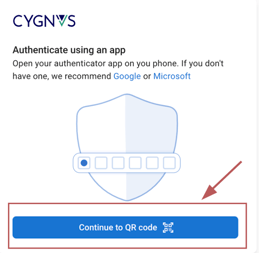
Get Ready to Scan the QR Code
- On your computer, log in to your CYGNVS account and start the TOTP setup process.
- When prompted, click "Continue to QR Code".
-
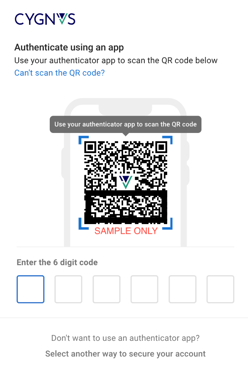
Scan the QR Code
- Using your authenticator app on your phone, scan the QR code displayed on your computer screen.
-
Enter the Code
- The app will generate a six-digit code. Enter this code in the designated field on your CYGNVS setup page.
- Click "Verify" to complete the setup.
Conclusion:
By completing these steps, your CYGNVS account is now secured with TOTP. This additional layer of security ensures that only you can access your account, even if your password is compromised.
Take a look at our Registration & Sign-in video for an overview of the most common path for our web based registration: